
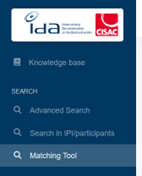
To access, go to the SEARCH section and open the Matching Tool menu.
The page displays 3 sections : Preset, Celf and results.
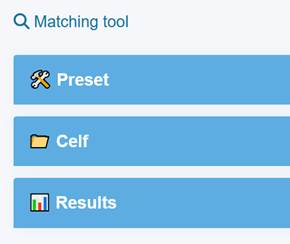
- In the Celf section, wait for the status to change to Finished.
- Once done, click the eye icon to access your Results.
Each record from the CELF file will be added to a tab (Matches, Pending Approval or Rejected), depending on the threshold configuration in your preset. Each record will display a line containing:
- the number of match results
- the minimum and maximum score
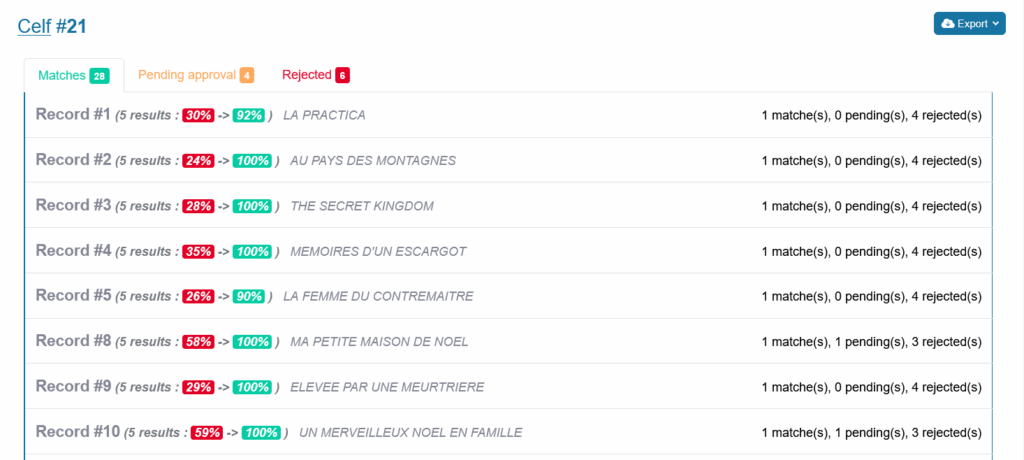
Click the row to expand and view the matched IDA references :
For each unknown work in your CELF file, the system provides possible matches with a global score. The proposals are sorted by relevance, with the best match shown first. You can view the global matching score for each possible match (with the IDA reference) and a detailed comparison of the fields.
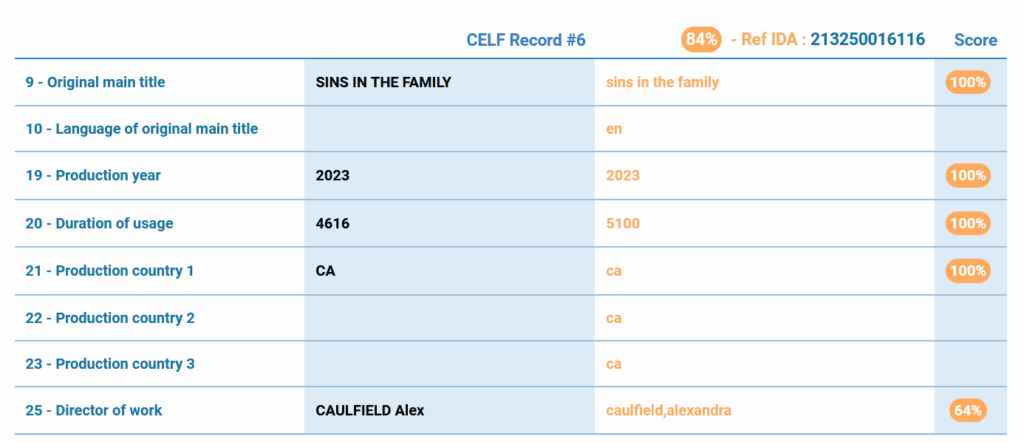
- The blue section corresponds to the data from the CELF file.
- The white section corresponds to the data from works registered in the IDA database.
- The percentages display the score calculated for each field.
To navigate between CELF records within the same tab, use the blue arrows.
To navigate between different IDA match proposals for the same record, use the orange arrows.
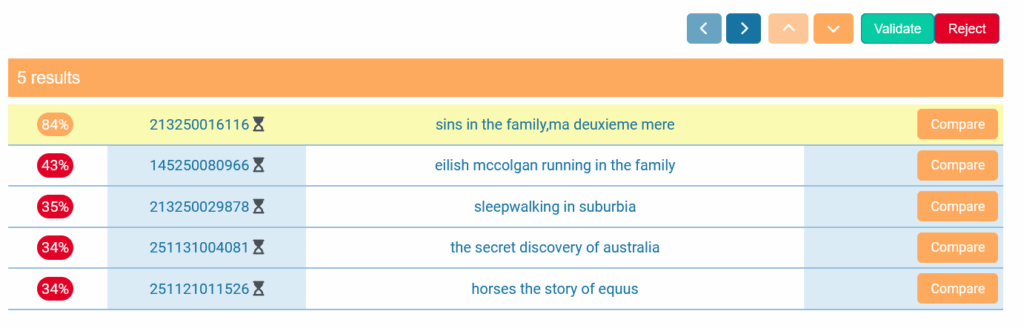
Your goal is to compare the fields and decide whether to validate the match or reject it, by clicking Validate or Reject.
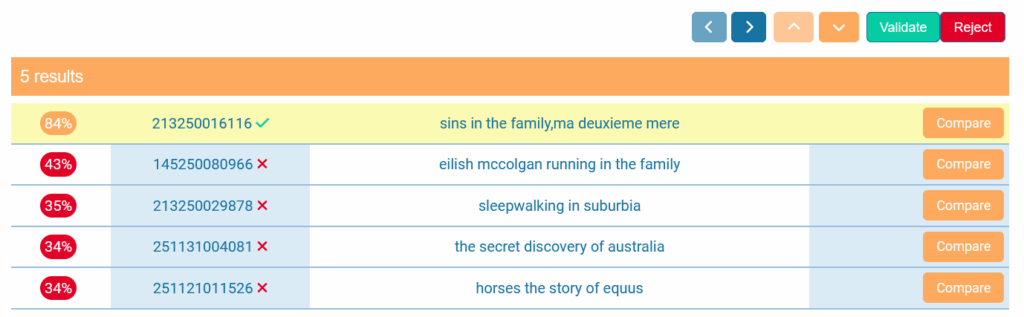
Once the process is complete, you can export a CELF file containing all works with a validated match. The corresponding IDA reference number will be added to the CELF file.
You can also export the unmatched works in order to try another preset, and potentially find the correct match in the IDA database.

Specific rules:
-> If a work is added or modified, the modification is taken into account within the next minute. You have to import your cell again in order to compare it with the new data.